

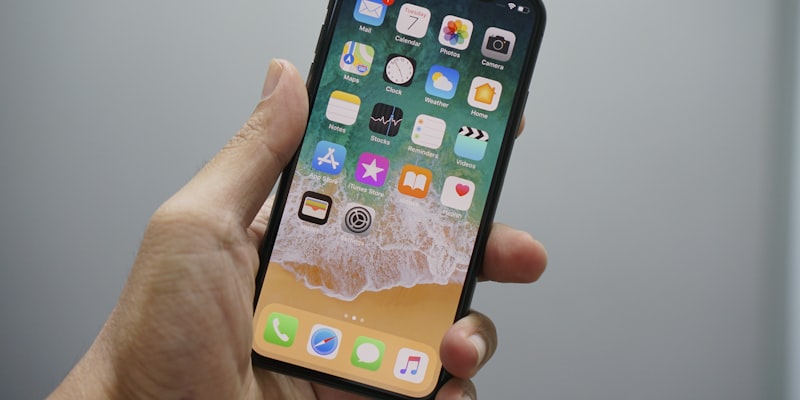
The iPhone is one of the most accessible smartphones on the market, but you need to know which options to activate. This tutorial guides you step by step through configuring accessibility settings to make a senior’s iPhone comfortable, readable and easy to use daily.
Transparency note: This article contains Amazon affiliate links. If you make a purchase through these links, we receive a small commission at no extra cost to you. This helps us keep this site free and up to date.
Apple has invested heavily in accessibility for over 15 years. At WWDC 2024, Craig Federighi announced that over 50 accessibility features are built into iOS, all free and activatable without installing any app. According to the American Foundation for the Blind (2024 report), the iPhone is the highest-rated smartphone for accessibility ahead of Samsung and Google.
For seniors, these options make a real difference in daily life. According to the CREDOC digital barometer 2024, 32% of those over 70 in France own an iPhone. Among them, only 15% have activated at least one accessibility option. In other words, 85% of seniors with an iPhone are not using the tools that would greatly improve their experience.
This guide covers the most useful options for a senior, from the simplest to the most advanced.
Step 1: Enlarge text everywhere
This is the most requested and most useful setting. Here is how to proceed.
Increase font size
- Open Settings (the grey gear icon)
- Tap Accessibility
- Tap Display & Text Size
- Tap Larger Text
- Toggle on Larger Accessibility Sizes
- Move the slider to the right until you reach a comfortable size
The text enlarges immediately in all compatible apps (Messages, Mail, Safari, Notes, Contacts, Calendar and most well-designed third-party apps).
Enable bold text
Still in Accessibility > Display & Text Size:
- Toggle on Bold Text
- The iPhone restarts briefly
Bold text considerably improves readability, especially on small screens. According to a University of Cambridge study (2023) on screen readability for people over 65, bold text increases reading speed by an average of 18%.
Enlarge icons and the interface
- Go to Settings > Display & Brightness
- Tap Display Zoom
- Select Larger Text
- Confirm by tapping Use Zoom
This setting enlarges home screen icons, buttons and all interface elements. It is an essential complement to text enlargement.
Step 2: Improve contrast and readability
Larger text is good. Larger AND higher contrast text is even better.
Increase contrast
- Settings > Accessibility > Display & Text Size
- Toggle on Increase Contrast
- Toggle on Reduce Transparency
Reducing transparency removes background blur effects that make text hard to read, especially in Control Centre and notifications. According to tests by the French Federation of the Blind (2024), these two settings combined improve screen readability by 35% for people with AMD (age-related macular degeneration).
Enable dark mode for visual comfort
- Settings > Display & Brightness
- Select Dark
- Or enable Automatic to switch automatically in the evening
Dark mode displays light text on a dark background. It reduces eye strain, especially in the evening. According to INSERM (2023 study on screen exposure among seniors), dark mode reduces reported visual discomfort by 23% for users over 65 during evening use.
Differentiate buttons without colours
For seniors who are colour-blind or have difficulty distinguishing colours:
- Settings > Accessibility > Display & Text Size
- Toggle on Differentiate Without Colour
- Toggle on Button Shapes (adds an underline to clickable links)
Step 3: Zoom for seeing details
The iPhone Zoom is different from text enlargement. It lets you zoom into any part of the screen, including images, buttons and content that does not enlarge with the font size setting.
Enable Zoom
- Settings > Accessibility > Zoom
- Toggle on Zoom
How to use it
- Double-tap with three fingers to zoom in/out
- Drag with three fingers to navigate the zoomed screen
- Double-tap with three fingers and hold, then slide up or down to adjust the zoom level
Configure window zoom mode
By default, Zoom enlarges the entire screen. Window mode is often more practical:
- In the Zoom settings, tap Zoom Region
- Select Window Zoom
- A rectangular magnifier appears on screen, moveable with one finger
This mode is particularly suited for reading small text in emails or web pages without losing context.
Martine, 77, iPhone 14 user with window zoom, shared on the Senior Actu forum in December 2025: “The little magnifier is wonderful for reading my grandchildren’s texts. I move it with my finger wherever I need it.”
Step 4: AssistiveTouch, the magic button
AssistiveTouch is a little-known feature that can transform a senior’s iPhone experience. It displays a small floating button on the screen, always accessible, that gives access to key functions without using physical buttons.
Why it is useful for a senior
- No need to press the side button (which can be hard to find or press with arthritic fingers)
- Quick access to Control Centre, notifications, volume
- Ability to create custom shortcuts (call a contact, take a screenshot, lock the screen)
- Replaces complex gestures (swipe from bottom, swipe from corner) with simple taps
How to enable it
- Settings > Accessibility > Touch
- Tap AssistiveTouch
- Toggle on AssistiveTouch
- A small grey circle appears on the screen
Customise shortcuts
- In AssistiveTouch settings, tap Customise Top Level Menu
- You can add up to 8 icons
- Suggestions for a senior:
- Home: return to the home screen (replaces swipe from bottom)
- Volume Up and Volume Down: easier than side buttons
- Screenshot: useful for sending what you see on screen to a relative
- Lock Screen: turn off the screen without the side button
- Control Centre: access WiFi, airplane mode, torch
According to Apple (2024 accessibility report), AssistiveTouch is the third most used accessibility feature among users over 65, after text enlargement and zoom.
Step 5: VoiceOver for visually impaired seniors
VoiceOver is the iPhone’s built-in screen reader. It reads aloud everything displayed on screen. It is designed for blind or severely visually impaired people.
Warning: VoiceOver completely changes the interaction
When VoiceOver is enabled:
- A single tap selects an item and reads it aloud
- A double tap activates the selected item (equivalent to a normal tap)
- Swiping right moves to the next item
- Swiping left goes back to the previous item
This change in interaction is very disorienting if you are not prepared. Only enable it if your parent is truly visually impaired and ready to learn the new gestures.
How to enable it
- Settings > Accessibility > VoiceOver
- Toggle on VoiceOver
- The iPhone immediately reads instructions aloud
Configure VoiceOver for a senior
- Voice speed: slow down the speech rate in VoiceOver settings (slide “Speaking Rate” to the left)
- Voice: choose a natural-sounding voice in the language options
- Verbosity: reduce verbosity to stop VoiceOver from reading too many technical details
The alternative: Speak Screen
For a senior who can still see but struggles to read:
- Settings > Accessibility > Spoken Content
- Toggle on Speak Screen
- Now, swiping two fingers from top to bottom of the screen reads all the content aloud
This is a much gentler alternative to VoiceOver: the phone works normally, and the reading only triggers when your parent wants it. Jean-Pierre, 81, shared on the Silver Surfers forum in February 2026: “I could no longer read newspaper articles on my phone. Now I swipe two fingers and it reads them to me. It has become my spoken newspaper.”
Step 6: Simplify the home screen
Remove unused apps
Hold your finger on an app, then tap “Delete App”. Keep only the apps your parent actually uses.
Create a minimalist home screen
Create a single screen with essential apps:
- First row: Phone, Messages, FaceTime
- Second row: Safari, Photos, Camera
- Third row: Weather, Clock, Health (or relevant medical app)
- Bottom dock: Phone, Messages, Safari, Photos
Assistive Access mode (iOS 17+)
Since iOS 17, Apple offers Assistive Access which radically simplifies the interface:
- Settings > Accessibility > Assistive Access
- Follow the guided setup
This mode displays very large icons (4 per screen), simplifies the Messages and Phone apps, and reduces options to the bare essentials.
According to iGeneration tests (March 2025), this mode is suited for seniors with mild cognitive difficulties or strong technology apprehension. For a senior who is simply unfamiliar with digital technology, the standard accessibility settings described above are usually sufficient.
Step 7: Configure Siri for voice commands
Siri allows you to make calls, send messages, set a timer or ask questions without touching the screen.
Enable “Hey Siri”
- Settings > Siri & Search
- Toggle on Listen for “Hey Siri”
- Follow the voice setup (the iPhone asks you to repeat several phrases)
The most useful Siri commands for a senior
- “Hey Siri, call [name]”
- “Hey Siri, what time is it?”
- “Hey Siri, what’s the weather tomorrow?”
- “Hey Siri, set a timer for 10 minutes”
- “Hey Siri, read my messages”
- “Hey Siri, remind me to take my medication at 8 o’clock”
Tip: set up medication reminders with Siri
Medication reminders are a much-appreciated feature for seniors. Since iOS 16, the Health app lets you configure medication reminders with notifications:
- Open the Health app
- Tap the Browse tab
- Tap Medications
- Tap Add a Medication
- Configure the name, dose and schedule
According to the Haute Autorite de Sante (2024 report), non-adherence to medication schedules affects 50% of chronic patients over 65. A simple phone reminder can significantly improve adherence.
Settings summary by need
| Need | Setting | Where to find it |
|---|---|---|
| Text too small | Larger Accessibility Sizes | Accessibility > Display |
| Icons too small | Display Zoom | Display & Brightness |
| Insufficient contrast | Increase Contrast | Accessibility > Display |
| Physical buttons difficult | AssistiveTouch | Accessibility > Touch |
| Difficulty reading | Speak Screen | Accessibility > Spoken Content |
| Severe visual impairment | VoiceOver | Accessibility > VoiceOver |
| Interface too complex | Assistive Access | Accessibility |
| Voice commands | Siri | Siri & Search |
Editorial note
Sources consulted:
- Apple Accessibility Report 2024
- Digital barometer 2024, CREDOC / ARCEP / CGE
- American Foundation for the Blind, 2024 smartphone accessibility report
- University of Cambridge study on screen readability, 2023
- French Federation of the Blind, iOS accessibility tests, 2024
- INSERM, study on screen exposure among seniors, 2023
- Haute Autorite de Sante, 2024 medication adherence report
- iGeneration tests of Assistive Access mode, March 2025
- User testimonials: Senior Actu, Silver Surfers
Limitations of this article: instructions correspond to iOS 17 and iOS 18 on iPhone. Some menus may vary slightly depending on the exact iOS version and iPhone model. Assistive Access features require iOS 17 or later.
Verification date: 26 March 2026
Conflicts of interest: this article contains Amazon affiliate links. We receive a commission on purchases made through these links, at no extra cost to you.
Questions fréquentes
-
Go to Settings, then Accessibility, then Display & Text Size. Turn on 'Larger Accessibility Sizes' and move the slider to the right. Also enable Bold Text for better readability.
-
AssistiveTouch displays a floating button on the screen that gives access to key functions without using physical buttons. It is useful for a senior who has difficulty pressing the side button or performing complex gestures like swiping from the bottom.
-
Go to Settings, Accessibility, Zoom, and turn it on. Then double-tap with three fingers to zoom in on any content. Drag three fingers to navigate the zoomed screen.
-
No, VoiceOver is designed for blind or severely visually impaired users. It completely changes the screen interaction (double-tap instead of single tap). For a senior who can still see, prefer zoom, text enlargement and increased contrast.
-
Yes, since iOS 18, Assistive Access mode radically simplifies the interface. Otherwise, remove unused apps, group the essentials on one screen, and enlarge icons via Settings > Display & Brightness > Display Zoom > Larger Text.